

Why Is My DVB-T2 Set Top Box Not Finding Any Channels
2026-08-28
Nothing is more frustrating than setting up your DVB-T2 Set top box, running the auto-scan, and seeing zero channels appear. This is one of the most common complaints among terrestrial TV users, and the solution is rarely a faulty device. In most cases, the issue lies in the antenna setup, signal environment, or scan settings. At Tompire, we have analyzed thousands of support tickets and field tests to pinpoint the exact reasons why a DVB-T2 Set top box fails to locate channels. Below, we break down every possible cause, diagnostic step, and long-term fix to get you back to watching crystal-clear broadcasts.
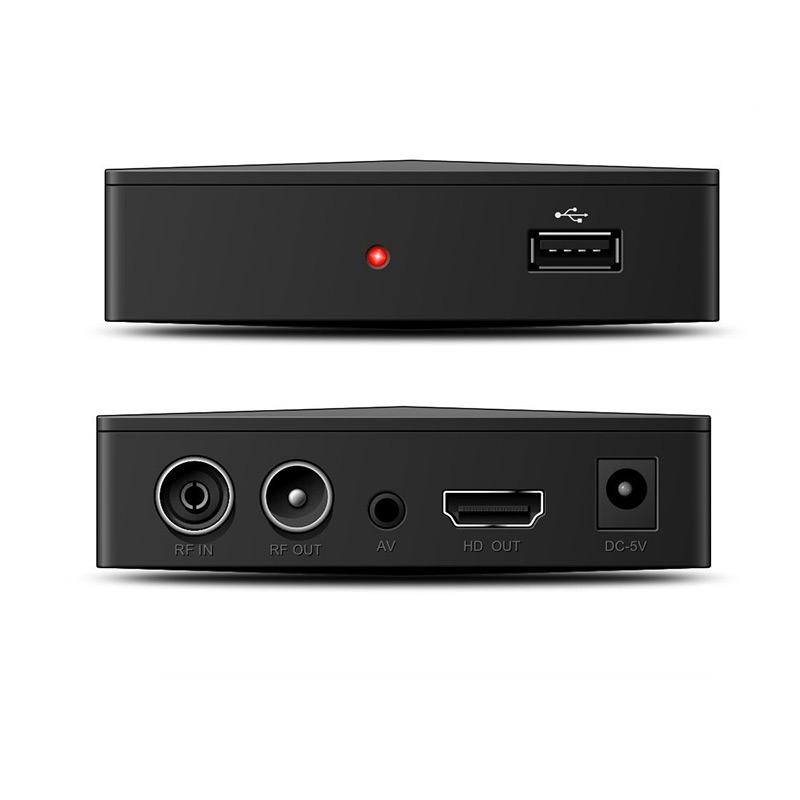
1. Antenna and Signal Strength (The #1 Culprit)
Your DVB-T2 Set top box is only as good as the signal it receives. Even premium models from Tompire cannot compensate for a poorly placed or damaged antenna.
| Issue | Symptoms | Quick Fix |
|---|---|---|
| Indoor antenna too far from window | 0–5 channels found, frequent pixelation | Reposition near glass, elevate above 1.5m |
| Damaged coaxial cable | Intermittent signal or "No Signal" error | Replace cable with RG6 grade |
| Wrong antenna type (UHF vs. VHF) | Missing specific channel groups | Check local transmitter frequencies (use OFCOM or equivalent) |
| Signal amplifier overdriving | Strong channels found, weak ones missing | Remove amplifier or switch to passive antenna |
Actionable step: Access the signal strength meter in your Tompire DVB-T2 Set top box menu. If the reading is below 60%, move the antenna progressively until you hit 75% or higher. If you are in a fringe area, consider a roof-mounted directional antenna.
2. Incorrect Scan Settings
Many users assume that a simple "Auto Scan" is foolproof, but DVB-T2 Set top box devices require precise parameters.
-
Country/Region mismatch – Selecting the wrong country alters the frequency table. Always choose your exact location.
-
Scan type – "Full Scan" is slower but more thorough than "Quick Scan." Use Full Scan for initial setup.
-
Network search – Enable "Network Search" or "NIT (Network Information Table)" to pull all multiplexes from the primary frequency.
Tompire recommends a manual frequency scan if auto-scan fails. Look up your nearest transmitter’s center frequency (e.g., 554 MHz) and enter it directly. This bypasses blind scanning errors.
3. Firmware and Codec Compatibility
Not all DVB-T2 Set top box units support the latest HEVC/H.265 or MPEG-4 codecs, especially for HD channels. If your region recently switched to DVB-T2 with HEVC, an older box will find audio/video streams but fail to lock them.
| Firmware Version | Supported Codecs | Channel Finding |
|---|---|---|
| v1.0 – v1.2 (legacy) | MPEG-2, MPEG-4 (partial) | May find SD only |
| v2.0 – v2.5 | MPEG-4, HEVC (main) | Full HD/SD |
| v3.0+ (Tompire models) | HEVC 10-bit, AAC, AC-4 | All current broadcasts |
Solution: Check your Tompire DVB-T2 Set top box firmware version in the System Info menu. Visit the official Tompire support page to download the latest OTA (over-the-air) or USB update. Outdated firmware is a silent killer for channel scans.
4. Frequency Shifts and Multiplex Changes
Broadcasters occasionally reorganize their multiplexes (MUX). When this happens, your DVB-T2 Set top box retains old channel lists but finds nothing during a new scan because the frequency table is stale.
-
Manual workaround: Delete all existing channels first (Factory Reset), then perform a fresh scan.
-
Automatic workaround: Enable "Auto Update" in the installation menu if your Tompire unit supports it.
5. Power Supply and LNB/Active Antenna Issues
Active indoor antennas require 5V DC power through the coaxial cable. Many DVB-T2 Set top box models have a "Antenna Power" toggle that is switched OFF by default.
| Setting | Effect |
|---|---|
| Antenna Power = OFF | Active amplifier receives 0V → No signal |
| Antenna Power = ON | Amplifier active → Channels found |
Tompire devices feature a dedicated LED indicator for antenna power. Ensure this is enabled if you use an amplified antenna.
6. Environmental Interference
Digital signals are susceptible to multipath interference from moving objects, heavy rain, or nearby 4G/5G towers. If you are in an urban area, try:
-
Shifting the antenna by just 30 cm horizontally.
-
Using a 4G/LTE filter (built into many Tompire models) to block cellular interference below 790 MHz.
DVB-T2 Set top box FAQ – Common Questions
Q1: Why does my DVB-T2 Set top box find channels during the day but lose them at night?
A1: This is almost always due to atmospheric ducting or temperature-driven signal drift. During nighttime, the ionosphere can reflect distant transmitters, causing co-channel interference. Additionally, coaxial cable loss increases with lower temperatures. Solution: Perform a manual scan during the evening when the issue occurs, and save those frequencies as a separate channel list. For Tompire users, enable the "Night Mode" under Advanced Settings, which applies a narrowband filter to reject adjacent interference. Also, check that your antenna is not near dimmer switches or LED drivers that emit RF noise after dark—these are common in residential areas.
Q2: Can a faulty HDMI cable prevent my DVB-T2 Set top box from finding channels?
A2: No. The HDMI cable carries only audio and video output; it has no role in RF reception or scanning. However, a bad HDMI connection can cause a black screen, which users often mistake for "no channels." To isolate: disconnect the HDMI and connect via composite (RCA) cables. If the channel list appears on RCA but not HDMI, replace the HDMI cable or try a different HDMI port. Your Tompire DVB-T2 Set top box includes a front-panel LCD that shows channel count during scanning—always watch that counter rather than the TV screen to confirm whether channels are actually being found.
Q3: How many channels should a normal DVB-T2 Set top box find in my area?
A3: This depends entirely on your country and local multiplex count. In the UK (Freeview), a typical scan yields 70–120 SD/HD channels across 6–8 multiplexes. In Germany (DVB-T2 HD), you will see 40–60 channels, mostly HD, across 4–5 MUX. In Australia, expect 25–35 channels. If your Tompire DVB-T2 Set top box finds fewer than 10 channels, you are likely receiving only the local public broadcaster (one MUX). Compare your results with the official coverage map for your postcode. If the map says you should receive 80 channels but you only get 15, the root cause is almost certainly antenna orientation or a damaged coaxial connector—check the inner pin of the F-connector for bending.
Final Diagnostic Checklist (Print This)
-
□
Antenna pointed toward correct transmitter (use a compass app)
-
□
Coaxial cable tightly screwed, no kinks
-
□
Antenna Power = ON (for active antennas)
-
□
Country/Region set correctly in menu
-
□
Scan type = Full Scan (not Quick)
-
□
Firmware updated to latest Tompire release
-
□
4G/LTE filter enabled (if available)
-
□
Factory Reset performed before last scan
When to Replace Your Unit
If you have gone through all the above and still see "No Channels" on two different antennas and two different locations, the tuner itself may be degraded. Tompire offers a 24-month warranty on all DVB-T2 Set top box models, with a no-questions-asked replacement policy for scanning failures proven to be hardware-related.
Still Stuck? We Are Here to Help.
Channel scanning should take 5 minutes, not 5 days. At Tompire, every DVB-T2 Set top box is pre-tested with live broadcast streams before packaging, but we understand that real-world installations vary. If you have tried every step in this guide and your DVB-T2 Set top box still refuses to find channels, do not waste time on forum threads or guesswork. Contact us directly through our support portal with your model number, firmware version, and a photo of your antenna setup. Our engineering team will respond within 4 business hours with a personalized frequency file tailored to your exact transmitter. Click the "Contact Us" button on our homepage or email [email protected] – we will get you scanning successfully, guaranteed.