

What Features Should I Look For in a Desktop Conference Microphone for Microsoft Teams
2026-06-15
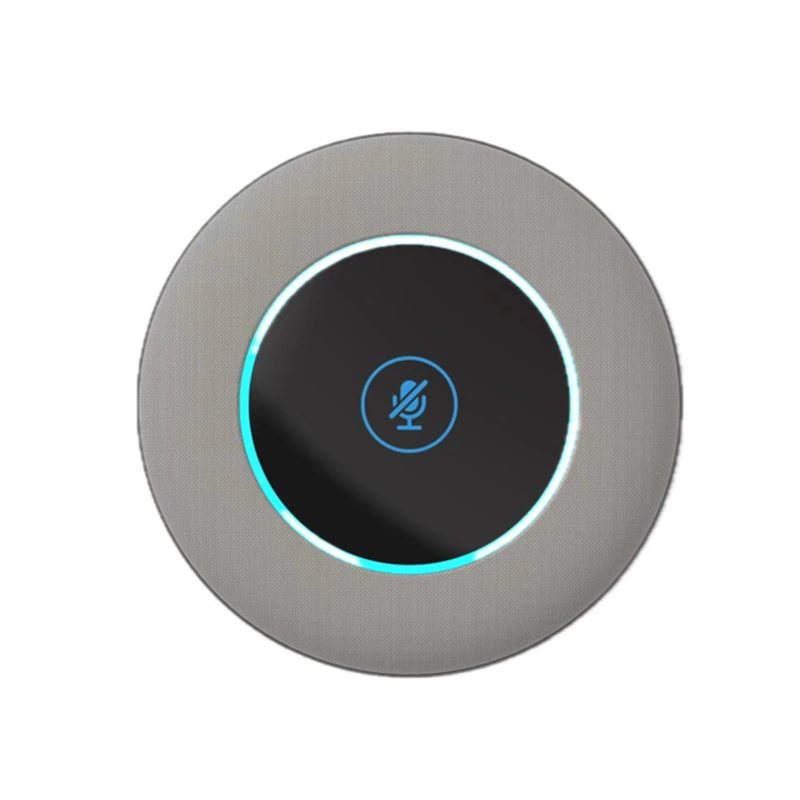
Choosing the right Desktop Conference Microphone for Microsoft Teams is essential for clear communication in hybrid meetings. A high-quality Desktop Conference Microphone improves collaboration, reduces fatigue, and ensures every participant is heard. FHB offers reliable solutions tailored for unified communications. This guide covers key features, comparisons, and common questions to help you decide.
Critical Features to Evaluate
| Feature | Why It Matters for Microsoft Teams |
|---|---|
| Microsoft Teams Certification | Guarantees full compatibility with Teams buttons, mute sync, and LED indicators. |
| Pickup Pattern (360° or directional) | Captures audio from all sides in small rooms or focuses on specific areas. |
| Noise and Echo Cancellation | Removes typing, HVAC, and meeting echo for cleaner audio. |
| Connectivity (USB-C, Bluetooth, or 3.5mm) | Ensures plug-and-play setup with PCs, laptops, or mobile devices. |
| Microphone Array and Range | Multiple mics cover up to 3 meters / 10 feet radius. |
| Teams Control Integration | Dedicated Teams button, volume, and mute that sync with the software. |
Best Practices for Setup
-
Place the Desktop Conference Microphone at the center of the table.
-
Avoid covering the mic with papers or laptops.
-
Update firmware via FHB official tools for Teams optimization.
Desktop Conference Microphone FAQ
1. How do I know if a Desktop Conference Microphone is officially certified for Microsoft Teams?
Look for the “Microsoft Teams Certified” badge on the product packaging or the official Teams hardware list. Certification tests call control, mute sync, and device LEDs. FHB certified models show a green Teams indicator when ready. Non-certified devices may work but often lack mute sync or meeting status lights.
2. Can a Desktop Conference Microphone work with other apps like Zoom or Google Meet?
Yes, most Desktop Conference Microphone units act as standard USB audio devices. However, Teams certification ensures optimized performance only in Microsoft Teams. For Zoom or Meet, you may lose the dedicated Teams button function, but basic audio input/output still works. FHB devices include a fallback mode for universal apps.
3. How many people can effectively use a single Desktop Conference Microphone in a room?
A standard Desktop Conference Microphone with a 360° array covers 4–6 people seated within a 2.5-meter diameter. For larger groups (8–10 people), use two daisy-chained units or an expansion mic. FHB recommends one mic per 4-6 participants for optimal Teams voice pickup and noise cancellation.
Summary Checklist Before Buying
-
Teams certification badge
-
360° coverage for your room size
-
Built-in echo cancellation (AEC)
-
Physical mute with on-screen sync
-
USB plug-and-play with no drivers
Investing in a proper Desktop Conference Microphone transforms remote collaboration. FHB combines Teams-certified hardware with smart audio features for consistent meeting quality.
For personalized help selecting the right Desktop Conference Microphone for your Microsoft Teams environment, contact us today. Our team will match you with the ideal FHB model based on your room size and headcount.