

How Do You Read and Interpret Data from a Disposable Temperature Recorder
2026-09-22
Temperature excursions can ruin an entire shipment of vaccines, biologics, or perishable food before anyone notices. A Disposable Temperature Recorder from PLUSTRACE solves this problem by logging temperature data continuously throughout the cold chain, but the device only delivers value when you know how to read its output correctly. This guide walks through the practical steps for interpreting that data with confidence.
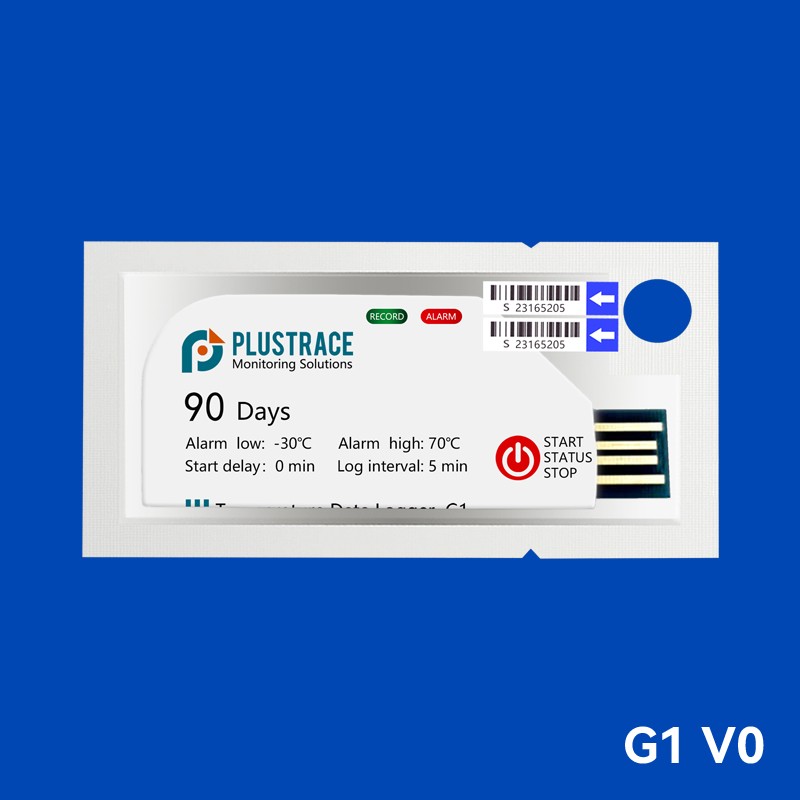
Understanding What the Device Records
A Disposable Temperature Recorder typically stores three core data types:
-
Timestamped temperature readings at fixed intervals
-
Minimum and maximum values across the logging period
-
Alarm events triggered when readings cross preset thresholds
PLUSTRACE devices ship with factory-calibrated sensors and a unique serial number, so every dataset can be traced back to a specific unit.
Step-by-Step Reading Process
-
Retrieve the data. Connect the Disposable Temperature Recorder to a PC via USB, or scan the QR code to download the PDF report from the PLUSTRACE cloud portal.
-
Confirm the device identity. Match the serial number on the report to the unit on the package.
-
Review the summary block. This shows start time, end time, mean kinetic temperature, and alarm status.
-
Examine the graph. Look for spikes, drops, or flat lines that indicate sensor failure.
-
Cross-check against your protocol. Compare results with the acceptable range defined for your product.
Key Metrics and Their Meaning
| Metric | What It Tells You | Action Threshold |
|---|---|---|
| Mean Kinetic Temperature | Effective thermal load on the product | Above labeled limit = reject |
| Min / Max Values | Worst-case exposure | Outside range = investigate |
| Alarm Duration | Total time out of specification | Exceeds SOP limit = quarantine |
| Data Interval | Logging frequency | Longer gaps reduce resolution |
| Battery Status | Whether logging completed | Low battery = invalid data |
A Disposable Temperature Recorder with a 5-minute interval gives far better resolution than one logging every 30 minutes, which matters when excursions are brief.
Common Pitfalls in Interpretation
-
Ignoring time out of range and focusing only on peak values
-
Failing to account for sensor accuracy tolerances
-
Mixing data from multiple Disposable Temperature Recorder units in one report
-
Overlooking pre-conditioning time before shipment
PLUSTRACE reports include accuracy margins and calibration certificates so reviewers can apply the correct tolerances.
Frequently Asked Questions
Q: How do I know if the data from a Disposable Temperature Recorder is valid?
A: Valid data requires a complete logging period, a functioning battery, no gaps in readings, and a serial number matching the device. PLUSTRACE reports flag incomplete or corrupted files automatically.
Q: What does an alarm on a Disposable Temperature Recorder actually mean?
A: An alarm means the recorded temperature crossed a preset threshold for a defined duration. It does not automatically mean product loss. Review the duration and the product's stability data before making a disposition decision.
Q: Can I reuse or reset a Disposable Temperature Recorder after reading it?
A: No. A Disposable Temperature Recorder is designed for single-use operation. Once stopped, the data is locked, and the device should be archived or discarded according to your SOP.
Best Practices for Documentation
-
Store PDF reports alongside shipping paperwork
-
Record serial numbers in your quality management system
-
Retain raw data for the period required by your regulator
-
Train staff on PLUSTRACE report formats annually
Conclusion
Reading a Disposable Temperature Recorder correctly protects patients, consumers, and your compliance record. PLUSTRACE designs every unit for clear, audit-ready data so your team can act fast. Contact us today to request samples, calibration documents, or a custom configuration for your cold chain.