

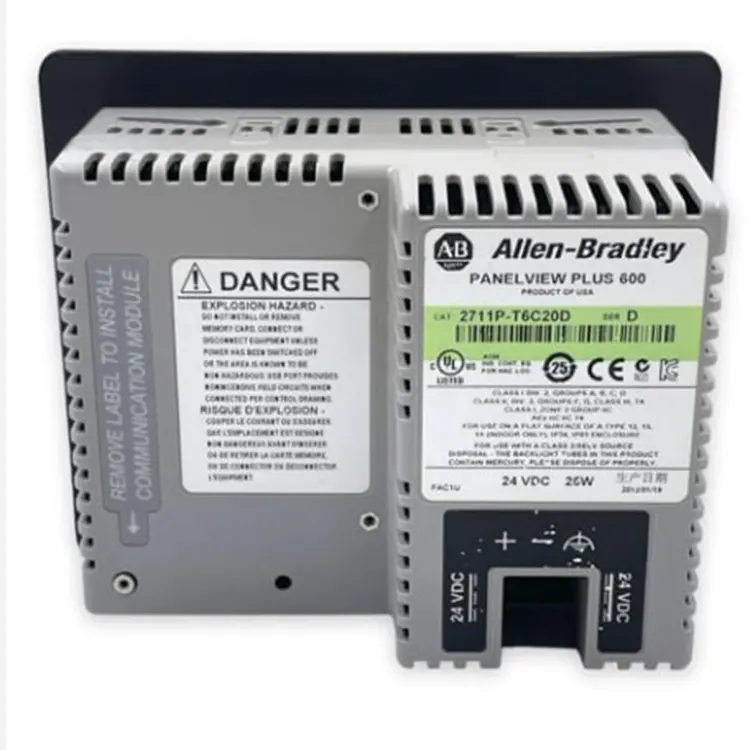
How Do You Program the Allen Bradley 2711P-T6C20D Using FactoryTalk View Studio
2026-09-30
Programming the Allen Bradley 2711P-T6C20D is a straightforward process when you use the right software and follow a structured workflow. This 6-inch PanelView Plus 600 terminal is widely deployed in industrial environments, and Feimu has supported hundreds of integration projects involving this exact model. Whether you are commissioning a new machine or replacing a failed unit, understanding the correct programming steps saves hours of downtime and prevents configuration errors.
Prerequisites Before You Start
Before opening FactoryTalk View Studio, confirm the following items are ready:
-
FactoryTalk View Studio (Machine Edition or ME) installed on your PC
-
RSLinx Enterprise or RSLinx Classic for communication drivers
-
The correct Allen Bradley 2711P-T6C20D firmware version
-
An Ethernet or serial connection to the terminal
-
A licensed copy of FactoryTalk View ME (required for PanelView Plus)
Feimu recommends verifying firmware compatibility first, because mismatched firmware is the most common cause of download failures.
Step-by-Step Programming Workflow
| Step | Action | Tool Required |
|---|---|---|
| 1 | Create a new ME project | FactoryTalk View Studio |
| 2 | Select the PanelView Plus 600 terminal type | Project Wizard |
| 3 | Configure communication setup | RSLinx Enterprise |
| 4 | Design screens and tags | Graphics Editor |
| 5 | Set up alarms and security | Alarm Setup |
| 6 | Validate and compile the project | Application Manager |
| 7 | Download to the Allen Bradley 2711P-T6C20D | Transfer Utility |
| 8 | Test runtime operation | PanelView Plus terminal |
Step 1: Create the Project
Launch FactoryTalk View Studio, choose Machine Edition, and create a new application. Name it according to your machine or line ID for traceability.
Step 2: Select the Terminal Type
In the Project Wizard, select PanelView Plus 600 and confirm the resolution matches the Allen Bradley 2711P-T6C20D display. This model uses a 5.7-inch color touchscreen.
Step 3: Configure Communication
Open RSLinx Enterprise and add a communication path. For Ethernet, enter the terminal IP address. For serial, configure the DF1 driver. Feimu suggests documenting the IP scheme to avoid conflicts during future maintenance.
Step 4: Design Screens and Tags
Use the Graphics Editor to build operator screens. Create tags in the Tag Database and link them to your PLC addresses. Keep tag names consistent with your control philosophy.
Step 5: Set Up Alarms and Security
Configure alarm messages and assign user access levels. This protects critical parameters from unauthorized changes.
Step 6: Validate and Compile
Run the Validate function to catch missing references. Then compile the project into a runtime file.
Step 7: Download to the Terminal
Use the Transfer Utility to send the runtime file to the Allen Bradley 2711P-T6C20D. Confirm the terminal is in configuration mode before starting the download.
Step 8: Test Runtime
Switch the terminal to run mode and verify each screen, tag, and alarm behaves correctly.
Common Programming Issues
| Issue | Likely Cause | Solution |
|---|---|---|
| Download fails | Wrong firmware version | Update terminal firmware |
| Tags not updating | Communication path error | Recheck RSLinx setup |
| Screen flickers | Insufficient memory | Reduce screen objects |
| Touch unresponsive | Calibration drift | Recalibrate touchscreen |
FAQ
Q: What software is required to program the Allen Bradley 2711P-T6C20D?
A: You need FactoryTalk View Studio Machine Edition along with RSLinx Enterprise or RSLinx Classic for communication. A valid license for FactoryTalk View ME is mandatory, and the terminal firmware must match the project version to ensure a successful download.
Q: Can the Allen Bradley 2711P-T6C20D be programmed over Ethernet?
A: Yes. The terminal supports Ethernet communication through its built-in port. You configure the IP address in the terminal's configuration menu, then create a corresponding path in RSLinx Enterprise. This is the preferred method in most modern installations because it offers faster transfer speeds than serial connections.
Q: How do you transfer a FactoryTalk View ME application to the Allen Bradley 2711P-T6C20D?
A: After compiling the project, open the Transfer Utility from FactoryTalk View Studio. Select the terminal as the destination, choose the runtime file, and start the transfer. The terminal must be in configuration mode, and the communication path must be active before the download begins.
Final Thoughts
Programming the Allen Bradley 2711P-T6C20D with FactoryTalk View Studio follows a logical sequence: prepare the environment, build the application, configure communication, download, and test. Feimu provides compatible terminals, firmware support, and technical guidance for teams working with this model. If you need help selecting a replacement, configuring software, or sourcing a reliable unit, contact us today and our team will respond with a tailored solution for your application.